
Artwork Manager. Your catalogue. In your hands.
Give authorised users the tools to manage artwork, organise products and add new designs directly within your print portal. From updating a single PDF to launching a new campaign range, your team can keep the catalogue current using agreed product specifications and pricing, with built-in artwork checks before anything is approved.
Keep your artwork current.
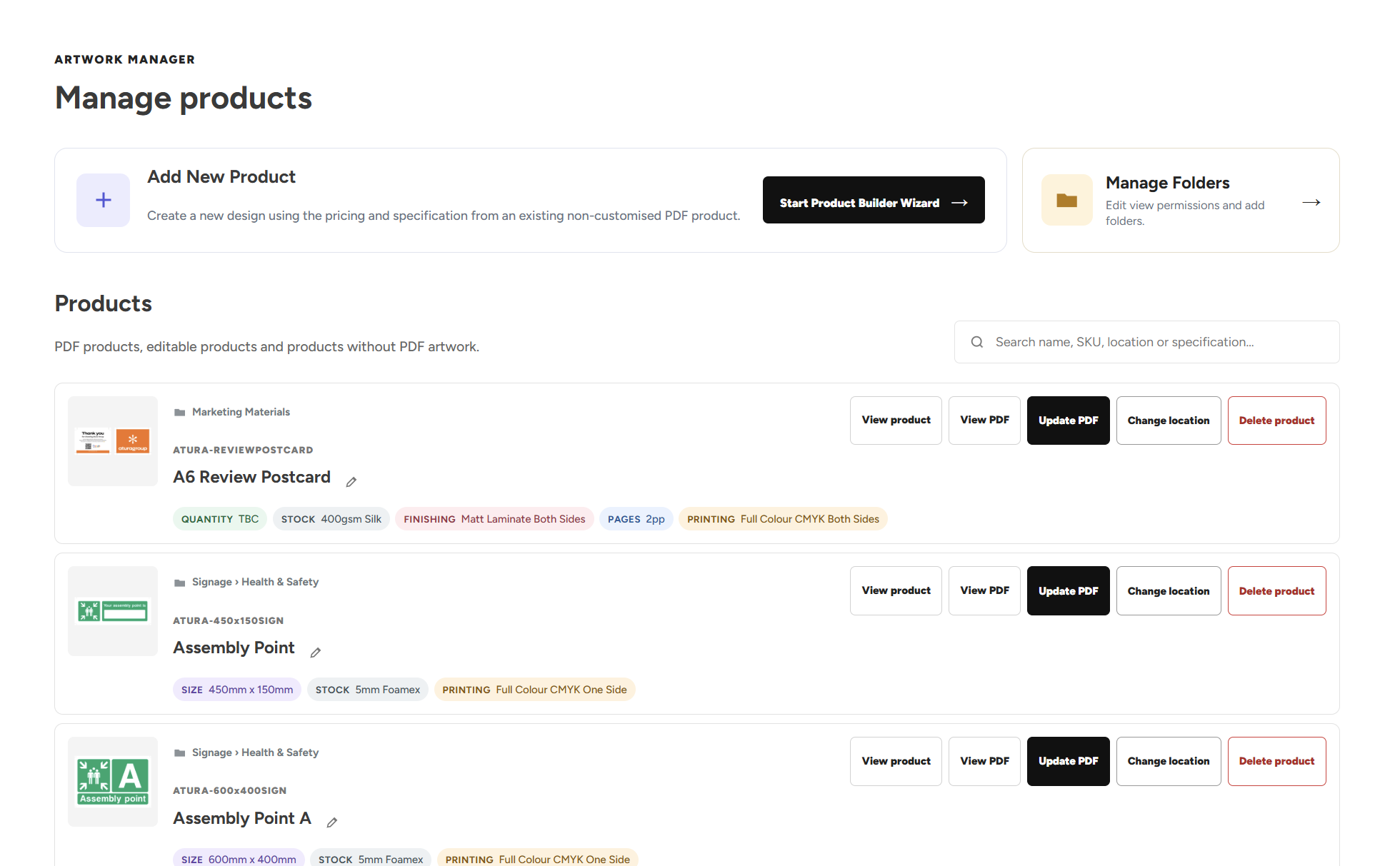
Find products by name, SKU or specification, view their existing PDF and upload replacement artwork in one place. Refresh a campaign, update contact details or replace an outdated design without rebuilding the product. Once approved, the new artwork becomes the version available for future orders, helping your teams use the right materials.
Add your own products with the guided builder.
The product-building wizard takes users through naming their new design, choosing an existing product setup and selecting where it belongs in the catalogue. They then upload their artwork, review the checks and approve the preview before creating the product.
Your team works within preset pricing structures and specifications, so a new leaflet, poster or other supported design can use an established commercial setup. Users can expand their range without setting prices themselves or starting a new quote for every design.

Check the artwork before it becomes a product.
Upload a PDF and the portal checks it against the selected product’s requirements, including page count, finished dimensions, bleed and crop marks. Clear results highlight what has passed and what needs attention, helping users catch an incorrectly sized file or missing print requirements before proceeding.
Review the artwork in a larger preview, inspect each page and approve the design before updating or creating the product. The same checking process supports both replacement artwork and new designs, giving your team a consistent workflow.
See what’s happening with your print colours.
The colour checker displays the main colours detected in the artwork, with visual swatches, CMYK values and an indication of how much of the design each colour covers. Similar shades are grouped together and flagged, making it easier to spot small variations that might otherwise go unnoticed—for example, two slightly different versions of a brand colour.
Spot and Pantone colours are highlighted by name where available, so users can check that their inclusion is intentional. Alternative black mixes are also flagged for review, helping distinguish a deliberate choice from an unexpected colour recipe.
If RGB colours are detected, the portal highlights them and generates a CMYK-adjusted preview using the configured print profile. This helps users understand how screen colours may change in print while preserving the original uploaded PDF. These checks support informed approval; they do not automatically replace colours or decide which shades belong to your brand.

Organise the catalogue around your business.
Create folders and subfolders, move products into the right location and choose which user groups can see each folder. Keep campaign materials, venue-specific designs and departmental products organised, so users can find what is relevant to them.
Authorised Artwork Managers can update folder visibility as requirements change and remove products that are no longer needed. Your team keeps control of the catalogue directly within the portal, without needing access to the website’s back end.

Artwork Manager FAQs
Managing Your Artwork and Products
What is the Print Portals Artwork Manager?
Artwork Manager gives authorised users control over their print catalogue directly within the portal. Your team can update product PDFs, create new products using established pricing and specifications, organise folders and manage folder visibility, without needing access to the website's back end.
Can our marketing team manage print artwork without contacting a supplier for every change?
Yes. Authorised users can replace artwork on supported PDF products themselves. They upload the new file, review the artwork checks and approve the preview before updating the product. This makes routine changes, such as refreshing a campaign or updating contact details, easier to manage internally.
Who can access Artwork Manager?
Artwork Manager is available to authorised users rather than every person who can place an order. You choose which colleagues need catalogue management access, allowing your marketing, brand or other nominated teams to maintain products while other users continue ordering normally.
Can I search the catalogue by product name, SKU or specification?
Yes. Search helps you find products using their name, SKU or specification. Product rows also display useful details and their catalogue location, helping you identify the correct item before updating artwork or moving it.
Can I view the existing artwork before replacing it?
Yes. Supported PDF products include a View PDF option so you can open the current artwork. You can also open the product page from Artwork Manager, making it easier to check the existing design and product details before making changes.
Can I replace a product's artwork without rebuilding the product?
Yes. Use Update PDF to upload replacement artwork for a supported product. Once the file passes the required checks and you approve it, the product is updated with the new PDF while retaining its existing commercial setup.
Can I rename products directly within the portal?
Yes. Authorised Artwork Managers can edit product titles from the catalogue list. Clear names help staff distinguish between campaigns, locations and design versions when searching for products and placing orders.
Can Artwork Manager change editable Artwork Builder templates?
Artwork Manager identifies editable products, but their template artwork cannot be replaced through its standard Update PDF workflow. Changes to editable template layouts should be arranged with your account manager. The replacement workflow is designed for supported products with uploaded PDF artwork.
The Product Builder Wizard
Can users add their own products to a print portal?
Yes. Authorised users can create new catalogue products through the guided Product Builder Wizard. They name the design, choose an eligible existing product setup, select a folder and upload their own print-ready PDF for checking and approval.
How does the guided Product Builder Wizard work?
The wizard takes users through a defined sequence: name the product, select the product specification and pricing setup to use, choose its catalogue folder, then upload and review the artwork. After the required checks and artwork approval, the new product is created in the portal.
Do users have to set prices when creating a new product?
No. New designs use the established pricing structure associated with the selected product setup. Your team can add supported designs without entering prices themselves, helping keep catalogue growth within your agreed commercial arrangements.
Can new products use existing specifications, variations and lead times?
Yes. The selected source product provides the established setup, including its specifications, pricing, variations and lead times where applicable. Users choose a suitable setup for their design rather than building those details from scratch.
Can we add new campaign designs without requesting a fresh quote each time?
Yes, where the new design uses an eligible product setup already available in your portal. For example, your team can create another leaflet design using an established leaflet specification and pricing structure. Products outside those agreed setups can be discussed with your account manager.
How do users find the right product setup to copy?
The wizard provides a searchable list of eligible source products, with images and specification details to help users choose. They can search by product name, SKU or specification and check the setup before uploading artwork against its requirements.
Can every catalogue product be used as a source for a new design?
The wizard offers eligible, accessible PDF products with supported setups. Editable Artwork Builder products and products with unsupported customisation requirements are excluded. This helps users create new designs from appropriate, established product structures.
What is the difference between the Product Builder Wizard and the Artwork Builder?
The Product Builder Wizard creates a catalogue product using your uploaded PDF and an existing product setup. The Artwork Builder lets users personalise a prepared design template, such as changing contact details or an image. They support different ways of creating and ordering branded materials.
PDF Checks and Proof Approval
What artwork checks happen before a PDF is accepted?
The portal checks whether it can open the PDF and compares its page count and dimensions with the selected product requirements. It also checks for the expected bleed and crop-mark allowance, examines colour information and generates previews for the user to review.
Does Artwork Manager check the finished size of my PDF?
Yes. The uploaded file is checked against the finished dimensions configured for the product. This helps identify artwork prepared at the wrong size before it becomes the PDF used for future orders.
Does the portal check page count, bleed and crop marks?
Yes. The preflight compares the PDF with the expected page count and checks the page geometry for the required bleed and crop-mark space. The results help users identify missing print allowances or an unsuitable file layout before proceeding.
Are the artwork checks the same for new products and replacement PDFs?
Yes. Both workflows use the selected product specification to check the uploaded artwork. This gives your team a consistent review process whether they are updating an existing design or creating a new catalogue product.
Can I inspect every page before approving the artwork?
Yes. The preview lets you review the uploaded artwork and inspect its pages before approval. A larger view helps you check details that may be difficult to assess from a small product thumbnail.
Do users have to approve the PDF before updating or creating a product?
Yes. Users must complete the required checking process and explicitly approve the artwork before the update or product creation can proceed. Uploading a file alone does not confirm it as the approved catalogue artwork.
Does Artwork Manager automatically check image DPI?
Image resolution inspection is currently shown as Not checked in the PDF upload workflow. Users should confirm that images have suitable resolution at their final printed size. The separate Artwork Builder has its own resolution warnings for images uploaded into editable templates.
Does passing preflight mean the artwork is guaranteed to be correct?
No. Preflight helps identify supported technical issues, but users still need to review the design, wording, positioning and colours. It does not check spelling, confirm that contact details are current or decide whether the artwork follows your brand guidelines.
CMYK Colours and Brand Consistency
What does the print colour checker show?
The colour checker displays the main colours detected in the artwork, with visual swatches, CMYK values and an indication of their coverage. It also highlights similar shades, detected spot colours and alternative black mixes to support a more informed artwork review.
Can I see the CMYK values detected in uploaded artwork?
Yes. Detected process colours are displayed with their cyan, magenta, yellow and black values. Your team can compare those values with the intended artwork or brand specification instead of relying only on how a colour looks on screen.
Can the colour checker identify slightly different versions of a brand colour?
It can flag similar detected shades for review. This helps users notice small variations, such as two close blues in the same design, and decide whether they are intentional. The checker does not automatically know which shade is your approved brand colour.
How are similar colours grouped in the artwork checks?
Similar shades are displayed together in a highlighted group so users can compare their values. The group uses a border and subtle background based on its dominant shade, making related colours easier to identify within the results.
What does the colour coverage percentage mean?
Coverage indicates approximately how much of the analysed artwork is represented by a detected colour. It helps users distinguish a dominant design colour from a smaller detail. It is an artwork analysis aid rather than a measurement of press ink consumption.
Does the portal flag Pantone and spot colours?
Yes. Detected spot colours, including Pantone colours where present, are highlighted by name when that information is available. This lets users check whether the spot colour is intentional and appropriate for the product before approving the file.
Why does the artwork checker flag different black mixes?
Black can be built from different combinations of CMYK inks. The checker highlights alternative recipes against its configured preferred rich black, helping users spot an unexpected mix. A warning prompts review rather than automatically rejecting a deliberate choice.
Does the colour checker automatically replace colours or enforce our brand palette?
No. It provides information and warnings so your team can make the decision. It does not automatically merge similar shades, replace spot colours or substitute your approved brand values into the uploaded PDF.
RGB Artwork and Print Previews
What happens if uploaded artwork contains RGB colours?
The portal highlights detected RGB content and generates a CMYK-adjusted proof using the configured print profile. This helps users assess how colours intended for screens may change when prepared for print.
Can the checker distinguish an RGB document from a PDF containing some RGB elements?
Yes. The colour report can distinguish artwork using RGB throughout from artwork containing a mixture of RGB and CMYK elements. The result explains why a colour-adjusted proof has been generated.
Does the CMYK-adjusted preview overwrite my original uploaded PDF?
No. The adjusted proof is generated for previewing while the original uploaded PDF is preserved. This lets users review the colour simulation without silently replacing their source artwork.
Can print previews account for coated and uncoated paper?
The shared artwork checking system supports configured print profiles for coated and uncoated stock. Where the selected product's stock and profile setup provide this information, the proof uses the relevant profile to help represent its expected colour response.
Why can colours look different on coated and uncoated paper?
Different paper surfaces reproduce colour differently. The same artwork can appear more vibrant on a coated stock and softer on an uncoated stock. A stock-aware preview helps users consider that difference when reviewing their design.
Will the screen preview exactly match the finished printed product?
The preview is a useful simulation rather than an exact physical colour guarantee. Screen settings, calibration, paper and the production process all affect appearance. Colour-critical work should be discussed with your account manager before approval.
Can I replace a PDF if the preview reveals a problem?
Yes. You can supply a revised PDF and run the checks again before approving the artwork. This gives your team the opportunity to correct issues in the original design file rather than approving a version they are unsure about.
Can Artwork Manager help us maintain consistent branded print across locations?
Yes. Your nominated team can maintain the catalogue artwork centrally, inspect detected colours and replace outdated designs. Combined with folder visibility and order approvals, this helps locations order from a controlled range of current branded materials.
Folders, Permissions and Catalogue Control
Can we create catalogue folders and subfolders ourselves?
Yes. Authorised Artwork Managers can create folders and nested subfolders directly within the portal. You can organise products around campaigns, departments, venues or other structures that make sense for your business.
Can I create a subfolder inside a folder that is currently empty?
Yes. Folder navigation lets you enter folders even when they do not already contain subfolders. You can build out the structure as needed rather than relying on an existing hierarchy.
Can we choose which teams can see each catalogue folder?
Yes. Folder visibility controls let authorised Artwork Managers choose which user groups can see a folder. Those groups can represent departments, venues, job roles or teams, helping keep each user's catalogue relevant.
Do subfolders follow restrictions set on their parent folder?
Yes. If a parent folder is hidden from a user group, that restriction carries through to its subfolders. Inherited restrictions cannot be overridden within the child folder, helping keep access consistent across the catalogue structure.
Can we update folder permissions after the catalogue has been created?
Yes. Use Manage Folders to select a folder, review its visibility settings and save changes for the relevant user groups. This lets your team adjust catalogue access as campaigns, departments and locations change.
Can I move an existing product to a different catalogue folder?
Yes. Change Location opens a folder browser with search and breadcrumb navigation. Choose the destination and confirm the move. The destination's category restrictions apply alongside any product-specific visibility rules.
Can authorised users remove outdated products from the portal?
Yes. Artwork Managers can delete products through a confirmation step, moving them to the bin. This helps remove obsolete campaign materials or designs from the active catalogue. Restoring a deleted product requires assistance outside Artwork Manager.
What makes managing artwork and products inside the portal useful?
Your team can move from artwork upload and technical checks to product creation, catalogue organisation and folder permissions within one connected workflow. This reduces the separate requests needed to maintain a print catalogue while keeping users within established product specifications and pricing. Contact Print Portals to see the complete Artwork Manager workflow.
Explore more portal features.
Discover more ways to simplify ordering and keep your brand in control.
Artwork Builder
Personalise approved designs and generate a proof, all within your portal.
Explore Artwork Builder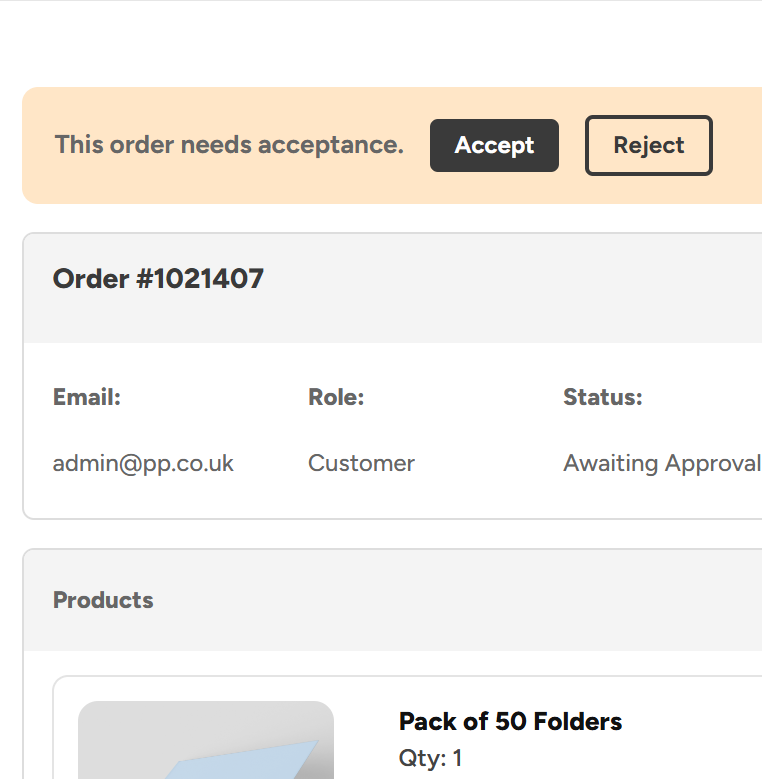
Admin Order Approvals
Keep control of spending with approval rules built around your teams, roles and business structure.
Explore Admin Order Approvals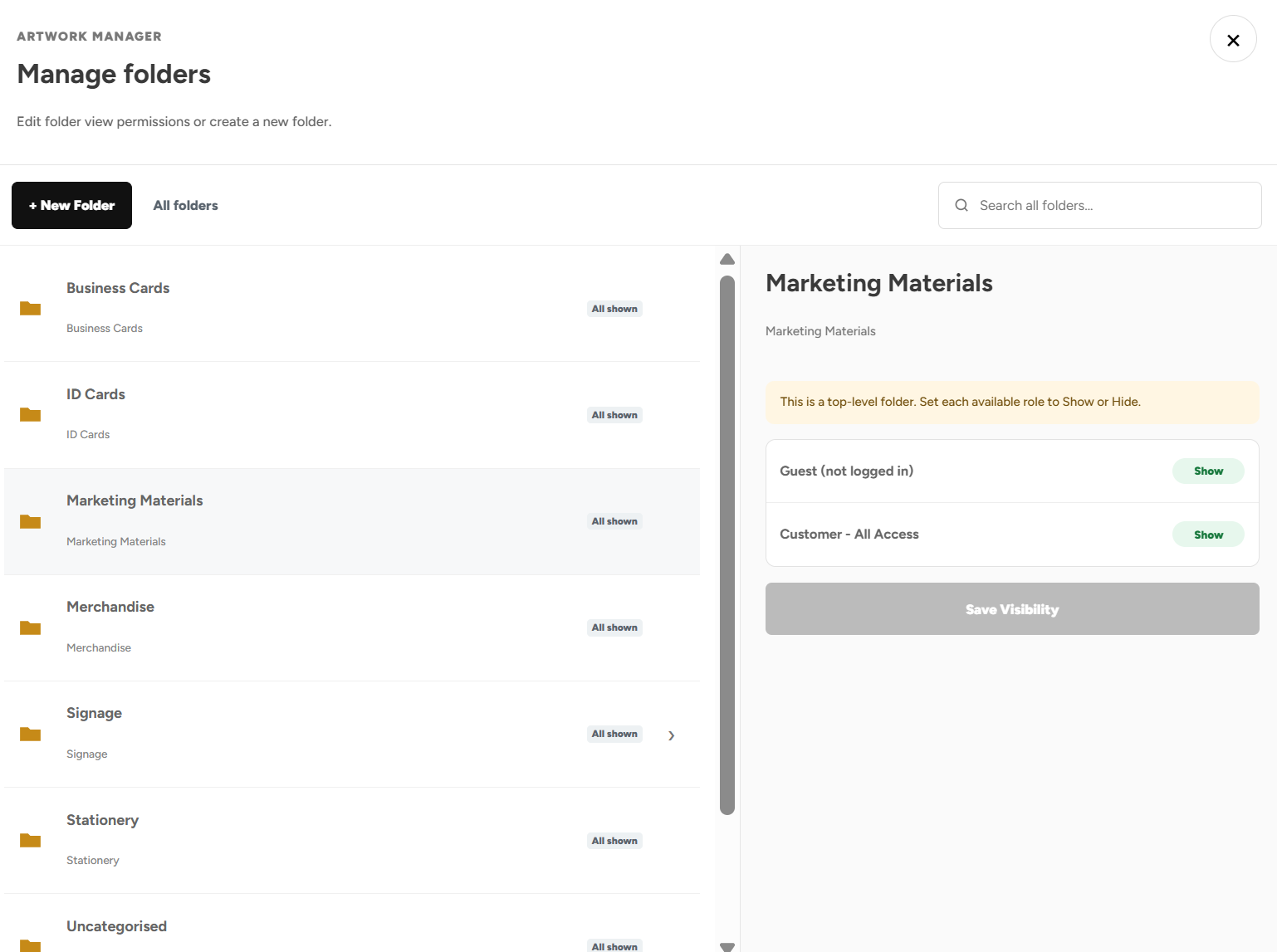
Product Visibility
Show or hide products and categories based on departments, venues, job roles, teams and more
Explore Product Visibility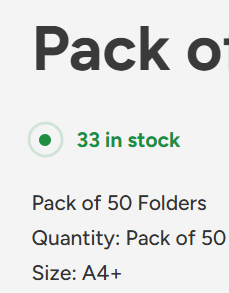
Shelf Stocking & Stock Control
See live stock levels 24/7, call off stock when needed, and save big on the products you buy regularly.
Explore Shelf Stocking & Stock Control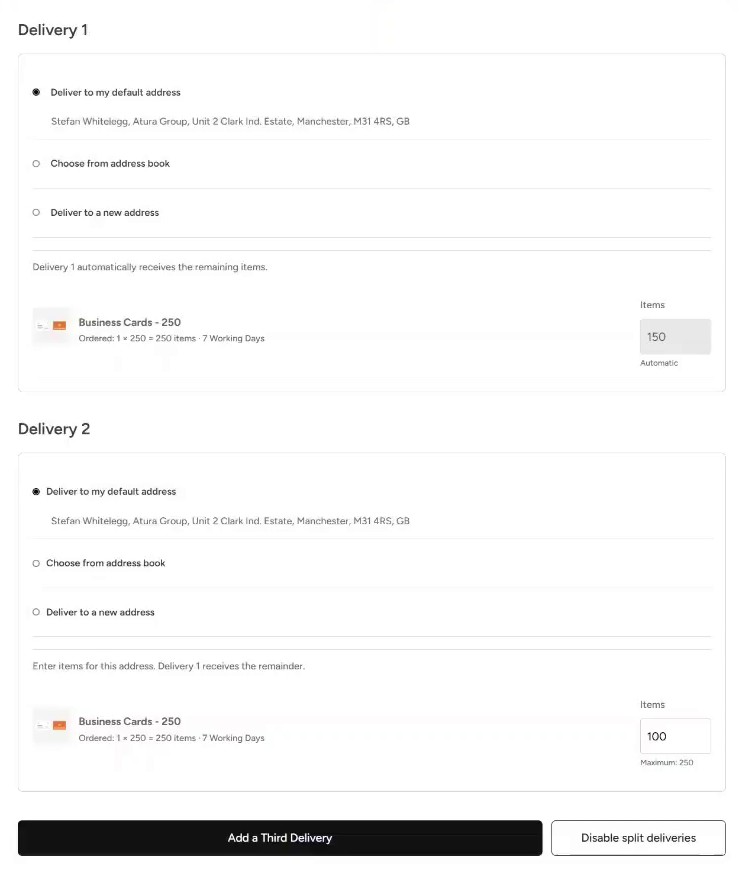
Split Deliveries
Send an order to multiple addresses directly through the portal.
Explore Split DeliveriesUpload Your Own Artwork
Upload your own print ready designs and add them straight to the basket.
Explore Upload Your Own ArtworkGet Started with Your Own Print Portal
Explore more features of our print portals or get started with a free no obligation consultation.