
The Most Advanced Web2Print Artwork Builder
Years of development and customer feedback has gone into building the most advanced, easy to use artwork builder in Web2Print. We guarantee your artwork can be made into an editable product and ordered by any member of staff, no matter how complex the design is. And you can give it a go and find out for yourself without any cost involved.
Artwork editing made easy
Turn approved artwork into editable templates your team can personalise in minutes. Update names, job titles, contact details and more, while keeping your brand’s fonts, colours and layout locked in. Preview the finished design, generate a proof and place your order - all within your print portal, with no design software or experience needed.
Catch low-resolution images before they print
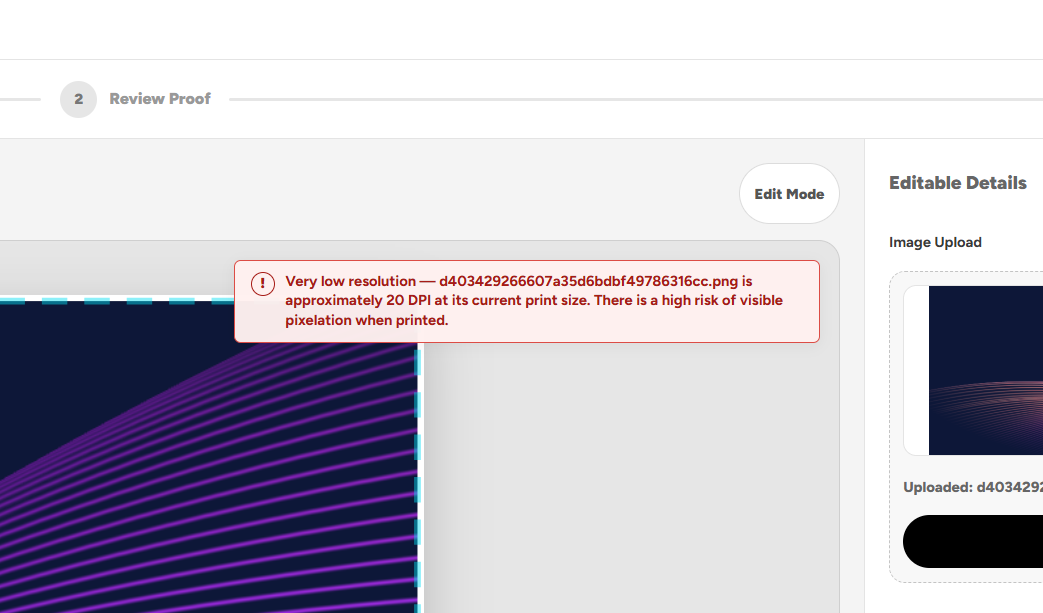
Our artwork builder checks the resolution of uploaded images and warns users when they fall below the recommended DPI for their print size. This helps your team spot images that could look pixelated, replace them with sharper alternatives and order with greater confidence.
Keep every detail readable
Long names, job titles or email addresses can cause text to shrink to fit your design. Our artwork builder warns users when it falls below the recommended size for printing, helping them spot details that could be difficult to read and make adjustments before placing an order.

Reuse artwork. Reorder in moments.
Bring back the exact text, images and image placement from a previous order without starting from scratch. Order a direct reprint or update the details before generating a new proof. From repeat business cards to refreshed promotional materials, reusing artwork makes your next order quicker and easier.

Flexible image editing. Built-in brand protection.
Give users control over their images while keeping your design intact. Fill mode makes images cover the entire shape, preventing unwanted white edges. Fit mode keeps items such as QR codes inside their designated area, so they can’t be dragged outside it. Both support custom-shaped masks and proportional scaling, keeping images in shape without squashing or stretching them.

Web2Print Artwork Builder FAQs
Using the Artwork Builder
What is a web-to-print artwork builder?
A web-to-print artwork builder lets users personalise approved print templates online and generate artwork ready to order. With Print Portals, your team can update text and images, review a PDF proof and add the finished design to their basket while working within your brand’s design rules.
Do staff need design software to personalise artwork?
No. Users edit their artwork directly within the print portal using straightforward fields and image controls. They do not need Adobe InDesign, Illustrator or other desktop design software to personalise a template that has already been configured for them.
What products can we personalise with the online artwork editor?
The Artwork Builder can be configured for products such as business cards, stationery, flyers, posters, ID cards and other printed materials. Each editable template is built around the product’s dimensions, artwork and personalisation requirements, rather than forcing every design into the same layout.
Can you turn our existing artwork into an editable print template?
Yes. We use your approved artwork to create a template with editable text and image areas. You decide which details users can change and which design elements remain fixed. Share your artwork and requirements with us so we can confirm the right setup for each product.
Which parts of a design can users edit?
Editable areas are configured for each template. These can include names, job titles, telephone numbers, email addresses, locations and uploaded images. Fixed brand elements, such as backgrounds, logos and approved layouts, can remain protected while users personalise the details relevant to their order.
Can users accidentally move text boxes or change the approved layout?
The customer-facing Artwork Builder works within predefined text boxes, image areas and template rules. Users personalise the fields you make available rather than freely rearranging the whole design. This helps protect the layout while allowing everyday changes without involving your design team.
Can optional fields disappear cleanly when they are left blank?
Yes. Templates can include conditional text that disappears when an associated optional field is empty. For example, a separator between two contact details can be hidden when one detail is not supplied, helping avoid stray punctuation and incomplete-looking lines in the finished artwork.
Brand Fonts and CMYK Colours
Can we use our own brand fonts in web-to-print templates?
Yes. You can supply your own licensed brand fonts instead of choosing from a restricted library of standard online fonts. We prepare and test the fonts for use in your templates and generated PDFs, helping maintain your organisation’s typography across personalised print orders.
Which custom font formats does the Artwork Builder support?
The font-upload system accepts TTF and OTF files. Compatible OTF fonts can be converted automatically for PDF generation. Font files are checked before they become available, and some formats, including variable fonts and font collections, require a compatible standalone static version.
Do we need to replace our corporate typeface with a similar font?
You do not need to choose a substitute simply because your corporate typeface is missing from a standard font library. We work with the brand font files you supply and check their suitability for the PDF workflow. Where necessary, we will request a compatible version of the same typeface.
Can users change the fonts and colours in our approved templates?
Font styles and brand colours are configured as part of the template setup. Users can be given editable content fields while the typography and colour settings remain controlled. This lets staff update details without introducing unapproved fonts or changing your brand’s colour recipes.
Does the Artwork Builder generate CMYK PDFs?
Yes. The Artwork Builder supports print-ready PDF output with authoritative CMYK values stored in the template. Configured CMYK text colours are passed directly into the generated PDF, helping preserve the agreed print-colour recipes rather than relying on an RGB screen-colour approximation.
Can generated artwork follow our brand’s exact CMYK colour values?
Yes. We can configure editable text with the CMYK percentages specified in your brand guidelines and retain those values in the generated PDF. This helps keep personalised elements consistent with your approved production artwork. The appearance of the final print also depends on the stock and printing process.
Will the artwork preview look exactly the same as the printed product?
A screen preview helps users check the design, but screens display colour differently from print. The production PDF retains the configured print-colour values, while the on-screen view is an approximation. Monitor settings, paper stock and production conditions can affect how the same colour appears.
Images and Clipping Masks
Can users upload their own photographs or images?
Yes, where an editable image area has been included in the template. Users can upload an image and adjust it using the controls allowed for that area. This works well for staff photographs, property images, campaign photography and other content that needs to change within an approved design.
Which image formats can users upload to the Artwork Builder?
The customer-facing image uploader accepts JPEG, PNG and WebP images. For the best printed result, users should supply a high-resolution original at a suitable size for its position in the design. The builder checks effective resolution after the image has been placed and scaled.
What is a clipping mask in an editable print template?
A clipping mask defines the shape or area in which an image appears. It might be a rectangle, circle or custom shape within your artwork. The Artwork Builder uses masks to keep uploaded images within the intended design, protecting the surrounding layout.
How does fill mode prevent white edges around uploaded images?
Fill mode requires the image to cover its entire designated shape. Users can adjust the crop within the permitted limits, but cannot shrink or reposition the image in a way that leaves part of the mask uncovered. This helps prevent unwanted blank edges in image-filled areas.
How does fit mode keep images and QR codes inside their allocated area?
Fit mode keeps the complete image inside its designated area and limits its size and position accordingly. It is useful for items such as supplied QR-code images that need to remain fully visible. Users cannot enlarge or drag the image beyond the permitted area.
Can our templates use custom-shaped image masks?
Yes. Alongside standard rectangular, circular and oval masks, templates can use custom SVG shapes. This allows uploaded images to follow distinctive brand graphics and layouts while retaining controlled image placement in both the editor and generated PDF.
Can users stretch or squash an image to make it fit?
No. Image scaling preserves the original proportions, so users cannot independently change the width and height to distort a photograph, logo or supplied QR-code image. Fill and fit rules determine how the image occupies its area while keeping its proportions intact.
DPI and Text-Size Checks
Does the Artwork Builder warn users about low-resolution images?
Yes. The Artwork Builder checks the effective resolution of uploaded images at their current size in the design. Images below the recommended resolution are flagged, helping users identify photographs or graphics that could look pixelated before approving the artwork.
What image resolution is recommended for printing?
The builder uses 300 DPI as its recommended image-resolution benchmark. Images between 150 and 299 DPI receive a low-resolution warning, while images below 150 DPI receive a stronger warning. Suitability still depends on the product, viewing distance and intended result.
Does zooming into an image affect its print quality?
Yes. Enlarging an image spreads its pixels across a larger printed area, reducing its effective DPI. The Artwork Builder includes the selected crop and zoom when calculating resolution, so its warning reflects how the image is actually being used rather than just the resolution recorded in the original file.
Can an order proceed if an image has a low-DPI warning?
The workflow allows users to proceed after reviewing the proof and explicitly acknowledging the relevant image-quality warnings. Replacing the image with a sharper original is usually the better option. Accepting a warning records the decision; it does not improve the image’s resolution.
What happens if a name or email address is too long for the design?
Text can reduce in size to fit its configured area. If a long name, job title or email address causes the effective text size to fall below the recommended minimum, the builder displays a warning so the user can review the details before proceeding.
Does the Artwork Builder check for text that is too small to print clearly?
Yes. The builder flags text that has reduced below its recommended 6pt minimum. The warning identifies the affected text and its effective size, helping users spot details that may be difficult to read on the finished product.
Can users approve artwork containing very small text?
Yes, after reviewing the generated proof and explicitly accepting the small-text warning. Users should first consider whether the information can be shortened or whether the template needs adjusting. Approval records their acceptance of the readability risk rather than removing it.
Proofs and Ordering
Can users preview personalised artwork before ordering?
Yes. Users can view their changes in the editor and switch to Proof Mode to generate a PDF visual for review. This gives them an opportunity to check the completed design, including the personalised text and image placement, before adding it to their basket.
Why is Proof Mode unavailable until the required fields are complete?
Required fields help ensure that essential information is supplied before a proof is generated. The workflow checks that the necessary details are present, reducing the risk of users approving a business card, ID card or other personalised product with important information missing.
Can users check every page of a personalised print design?
Yes. Templates can contain multiple pages, and users can review the generated artwork before approval. This is useful for products such as double-sided business cards, where the personalised information and the reverse design both need checking.
Does the artwork have to be approved before it reaches the basket?
Users must generate the PDF visual and either approve the artwork or request designer review before adding the product to their basket. Any required acknowledgements for low-resolution images or very small text must also be completed.
Can a user request a designer to review their artwork?
Yes. The workflow includes a designer-review option, allowing users to explain what they would like checked rather than approve the artwork themselves. Their review request and notes are recorded with the artwork so the team can understand the concern.
Can artwork be edited after it has been added to the basket?
Yes. The checkout workflow includes an Edit Artwork option for supported Artwork Builder items. Users can reopen the editor, make their changes and complete the proofing steps again before continuing with the order.
Can one order contain different personalised versions of the same product?
Yes. Separate personalised designs can be kept as distinct basket items with their own artwork records. For example, you can order the same business card specification for several members of staff while retaining the correct proof and details for each version.
Artwork Reorders and Setup
How do I reorder personalised artwork from a previous order?
Use the Reuse Artwork option to bring back a design from your previous orders. The builder restores the saved personalisation and image placement, helping you place a repeat order without entering all the details or positioning the images again.
Can I amend previous artwork instead of ordering an exact reprint?
Yes. Load the previous artwork, update the fields or images that need changing and generate a new proof. This is useful when someone changes job title, a contact detail is updated or an existing design needs adapting for a new member of staff.
Does reusing artwork restore the previous image crop and positioning?
Yes. Saved artwork includes the image-placement information used for that design, alongside the personalised fields. Reusing it helps retain the previous crop and positioning rather than requiring the user to recreate the layout manually.
What happens if the template has changed since my last order?
The builder alerts you when the template has been updated and loads your saved details into the latest version. You are prompted to check everything carefully before generating a new proof, helping prevent an outdated layout from being reused without review.
Does reusing artwork overwrite the original order?
No. Reusing a previous order creates a new design instance for the next purchase. Your earlier order keeps its own artwork record, while the new order records the version you review and submit this time.
How does the Artwork Builder help franchises and multi-site businesses maintain brand consistency?
Central teams can provide approved templates with controlled fonts, colours, layouts and image areas. Local users personalise the permitted details for their venue, branch or team. This reduces repetitive design work while helping keep materials consistent across different locations.
Can we try the web-to-print artwork editor before setting up a portal?
Yes. You can explore the demo print portal to see the ordering experience. For a demonstration using your own artwork, fonts and brand requirements, speak to our team about configuring an editable template for your business.
Explore more portal features.
Discover more ways to simplify ordering and keep your brand in control.
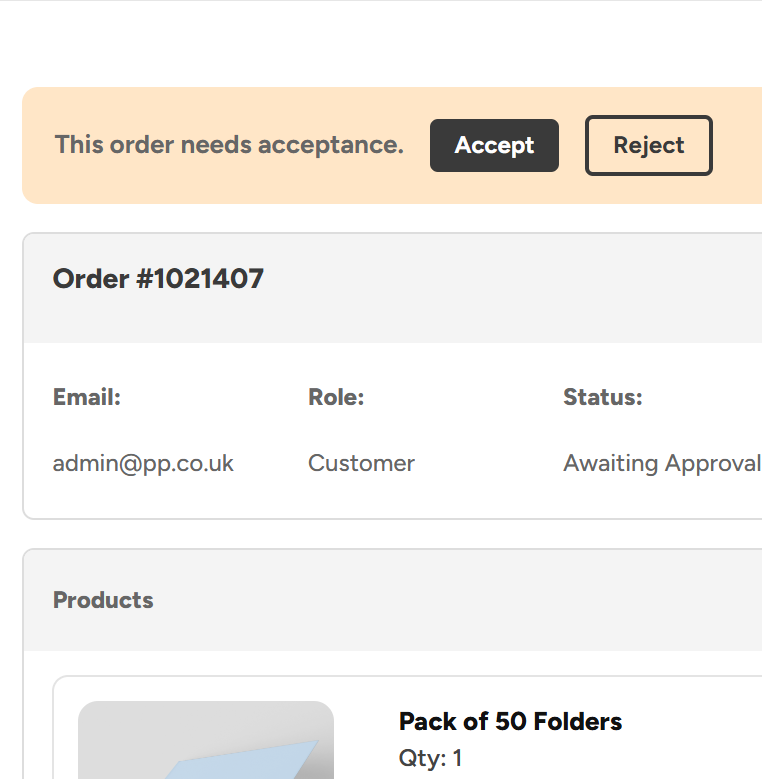
Admin Order Approvals
Keep control of spending with approval rules built around your teams, roles and business structure.
Explore Admin Order Approvals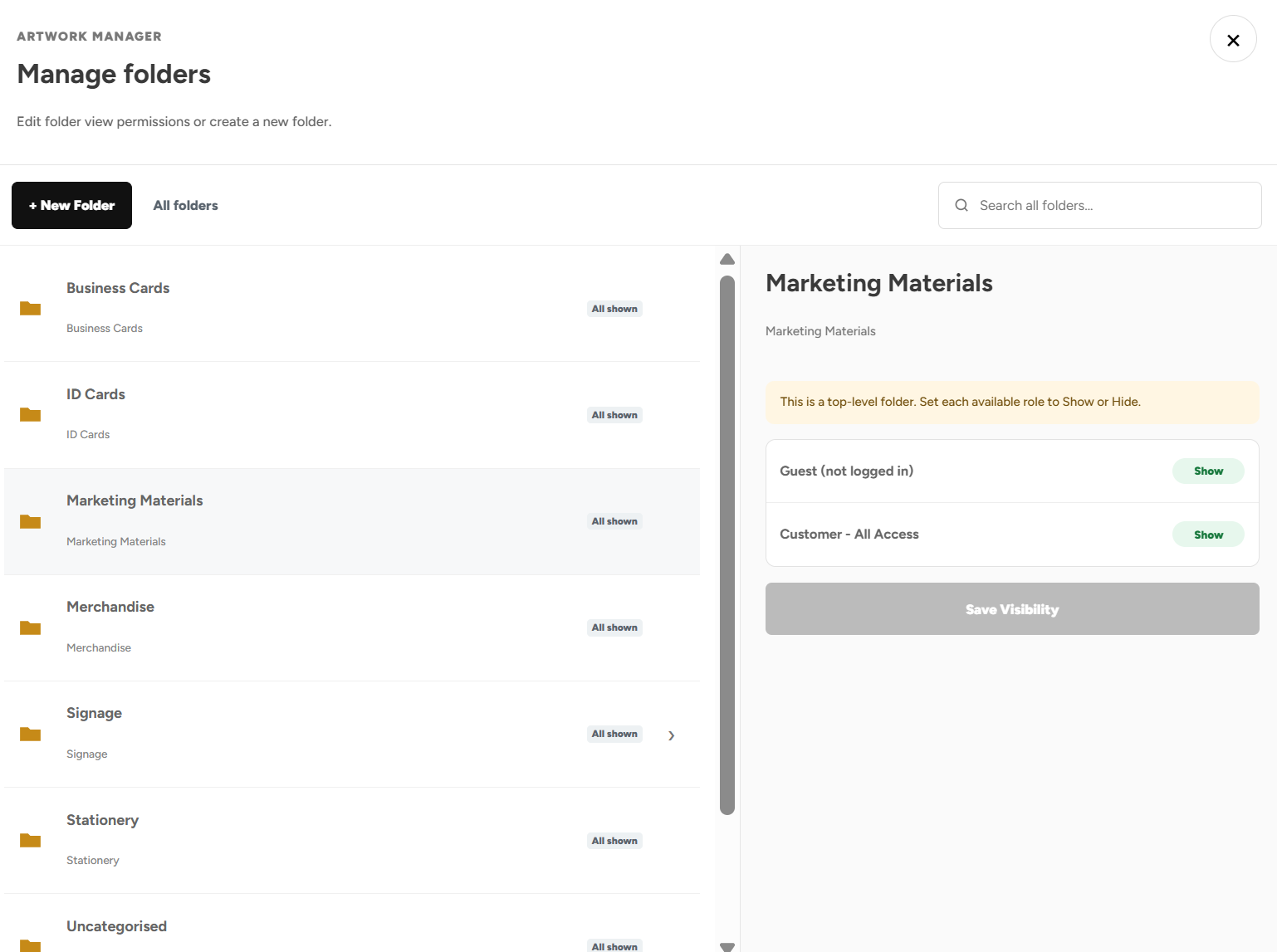
Product Visibility
Show or hide products and categories based on departments, venues, job roles, teams and more
Explore Product Visibility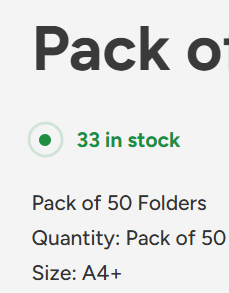
Shelf Stocking & Stock Control
See live stock levels 24/7, call off stock when needed, and save big on the products you buy regularly.
Explore Shelf Stocking & Stock Control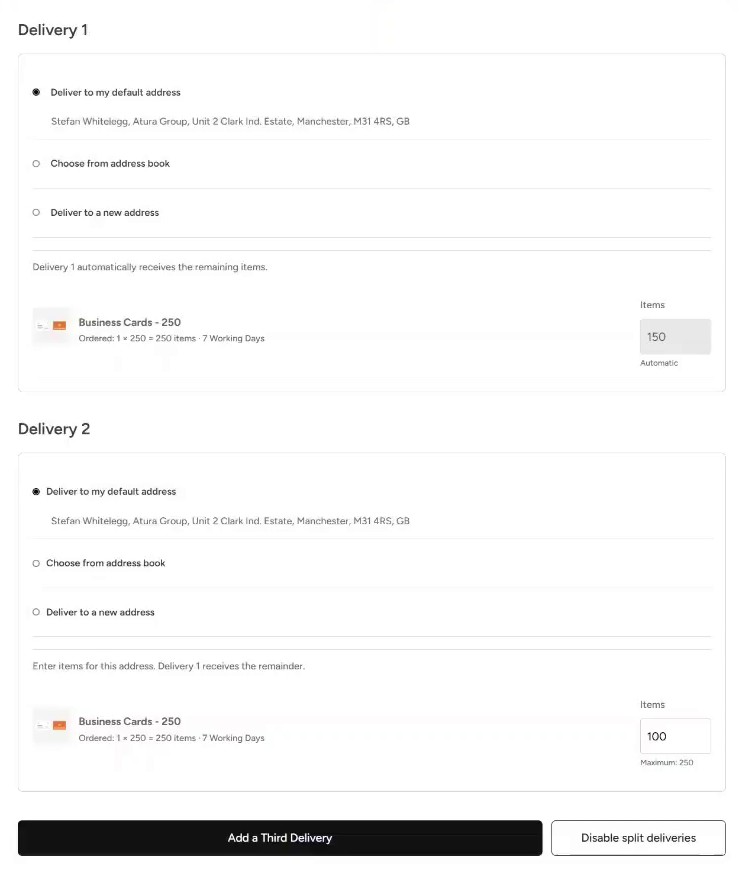
Split Deliveries
Send an order to multiple addresses directly through the portal.
Explore Split Deliveries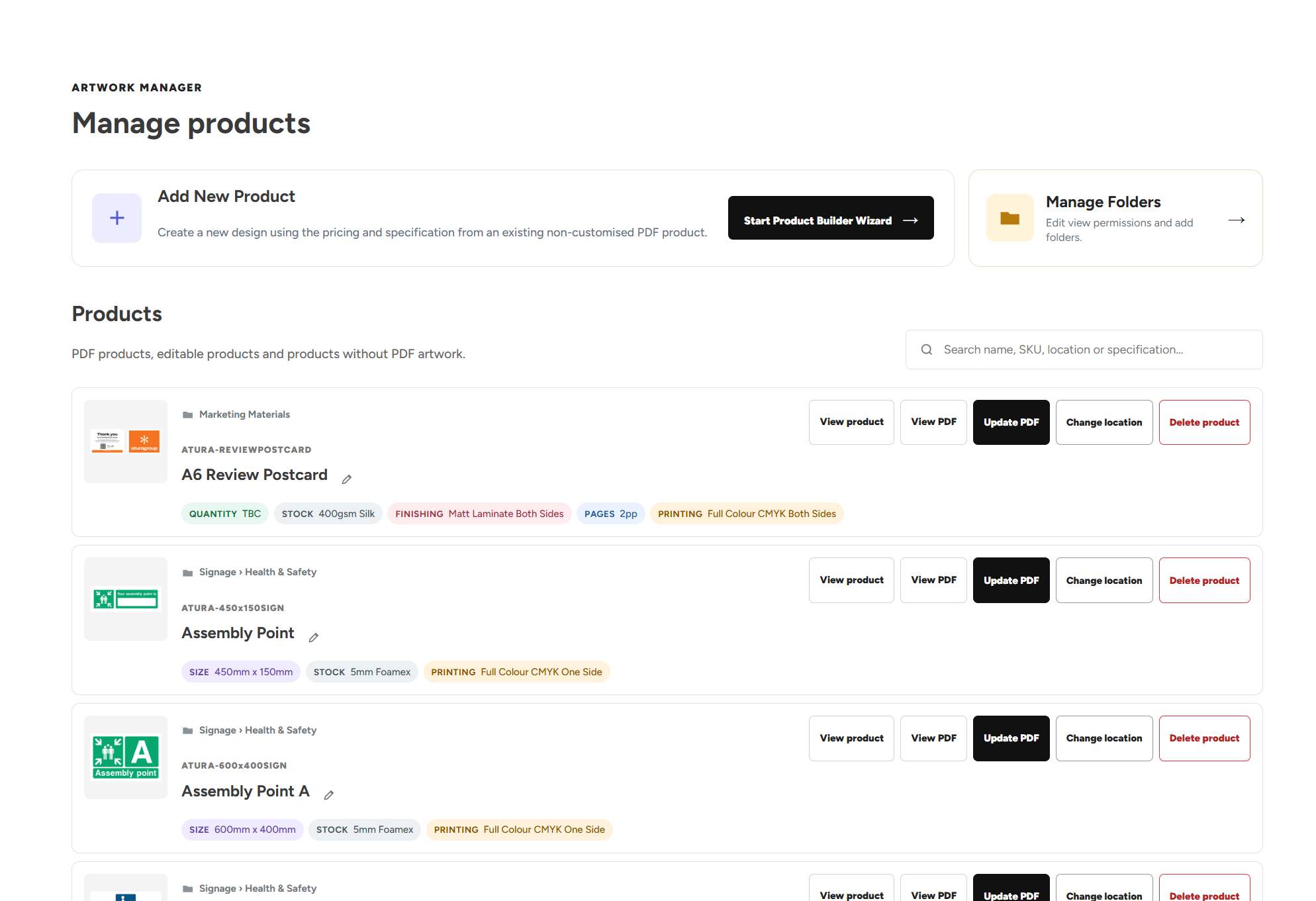
Artwork Manager
Organise your designs, update artwork, add new products and manage who can see specific products.
Explore Artwork ManagerUpload Your Own Artwork
Upload your own print ready designs and add them straight to the basket.
Explore Upload Your Own ArtworkGet Started with Your Own Print Portal
Explore more features of our print portals or get started with a free no obligation consultation.